Connect Perplexity
Add Ticker as a remote custom connector.
Who can do this: A paid Perplexity plan. The free plan cannot add a custom connector.
https://api.findticker.com/mcpSteps
- 1
On a paid Perplexity plan, open your profile at the lower left, choose All settings, then Connectors.
- 2
Click Custom connector, then choose Remote.
Remote, not Local. Ticker runs on Ticker's servers.
- 3
Name it Ticker and paste the Ticker server URL into MCP Server URL.
An icon is optional, and must be under 128 KB if you add one.
- 4
Set Authentication to OAuth and Transport to Streamable HTTP.
Leave the client ID and secret empty. Perplexity reads Ticker's OAuth settings from the server itself.
- 5
Tick the acknowledgement box, then click Add.
- 6
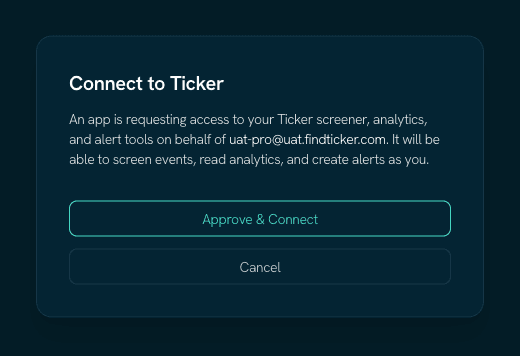
Click the Ticker connector card to sign in to Ticker and switch it on.
Worth knowing
Enterprise can share it
An Enterprise admin can turn the connector on for the whole organisation from the enterprise settings.
Ticker needs no client ID or secret
The server registers your client automatically and uses PKCE. Leave the OAuth client fields empty.
Where these steps come from
Checked against the platform's own documentation on 2026-08-29. Perplexity changes these menus without notice — if a name here does not match what you see, the platform docs below are the newer truth, and tell us so we can fix this page.