Dashboard
Your home page in the app, a grid of Widgets you choose, size and arrange.
The Dashboard is the first page after you sign in. It is a grid of Widgets: each Widget shows one thing, such as the market at a glance, your Views, the events moving most, or the events inside one View.
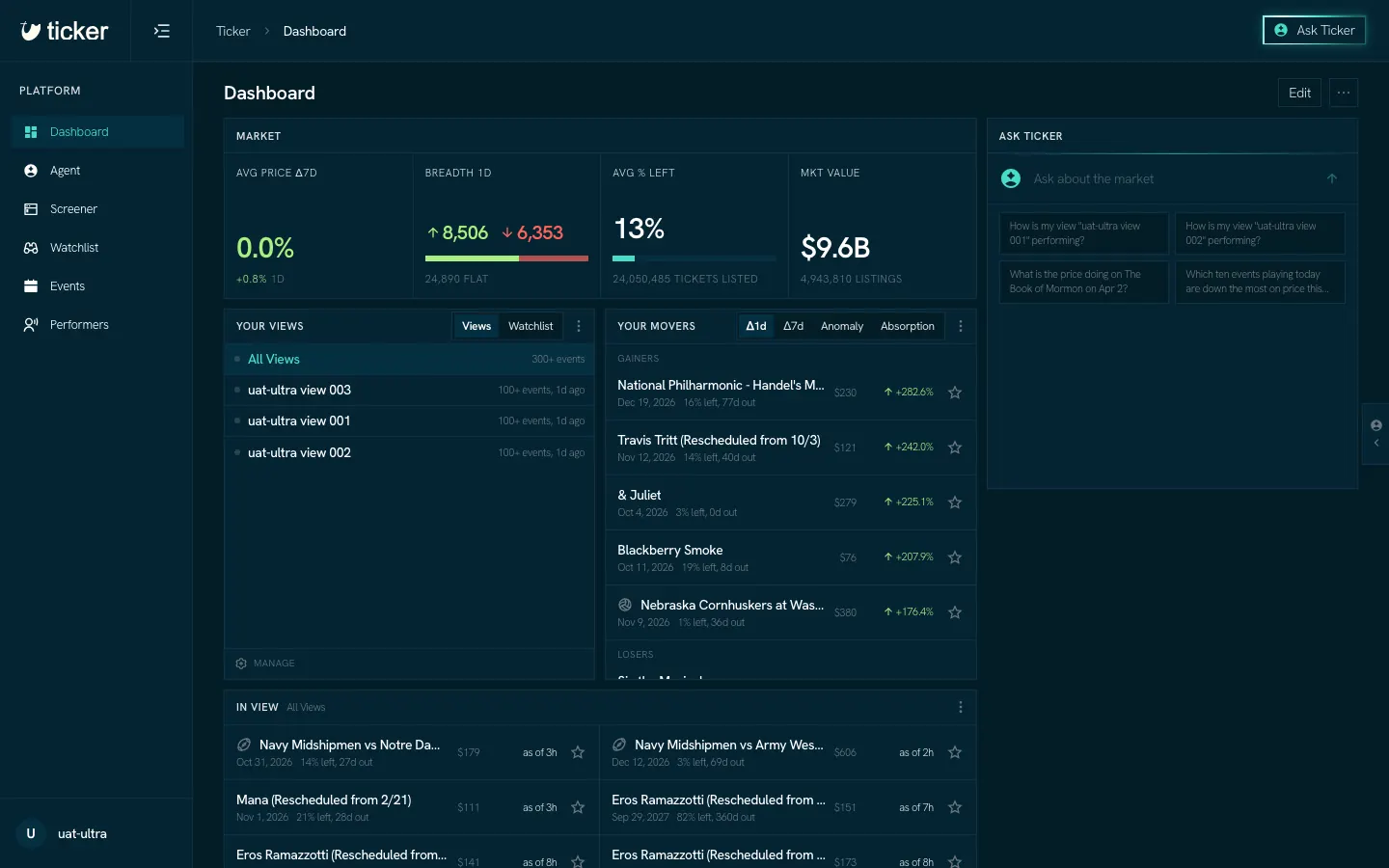
Change the layout
- Click Edit at the top right of the Dashboard.
- Drag a Widget to move it. Drag the handle at its corner to change its size.
- Click the plus Cell to add a Widget. Click the × on a Widget to remove it.
- Click Done.
Outside Edit mode nothing moves, so you cannot change the layout by accident.
To go back to the layout every account starts with, open the menu beside Edit and choose Reset dashboard.
Widgets that point at something
Some Widgets read one thing you pick: a View, an event or a performer. A Widget's options menu sets what it reads and its size.