Using the app
Where each thing lives in the Ticker app, page by page, in the order of the sidebar.
The app at findticker.com has six pages in the left sidebar. Your account menu sits at the foot of the sidebar, under your name.
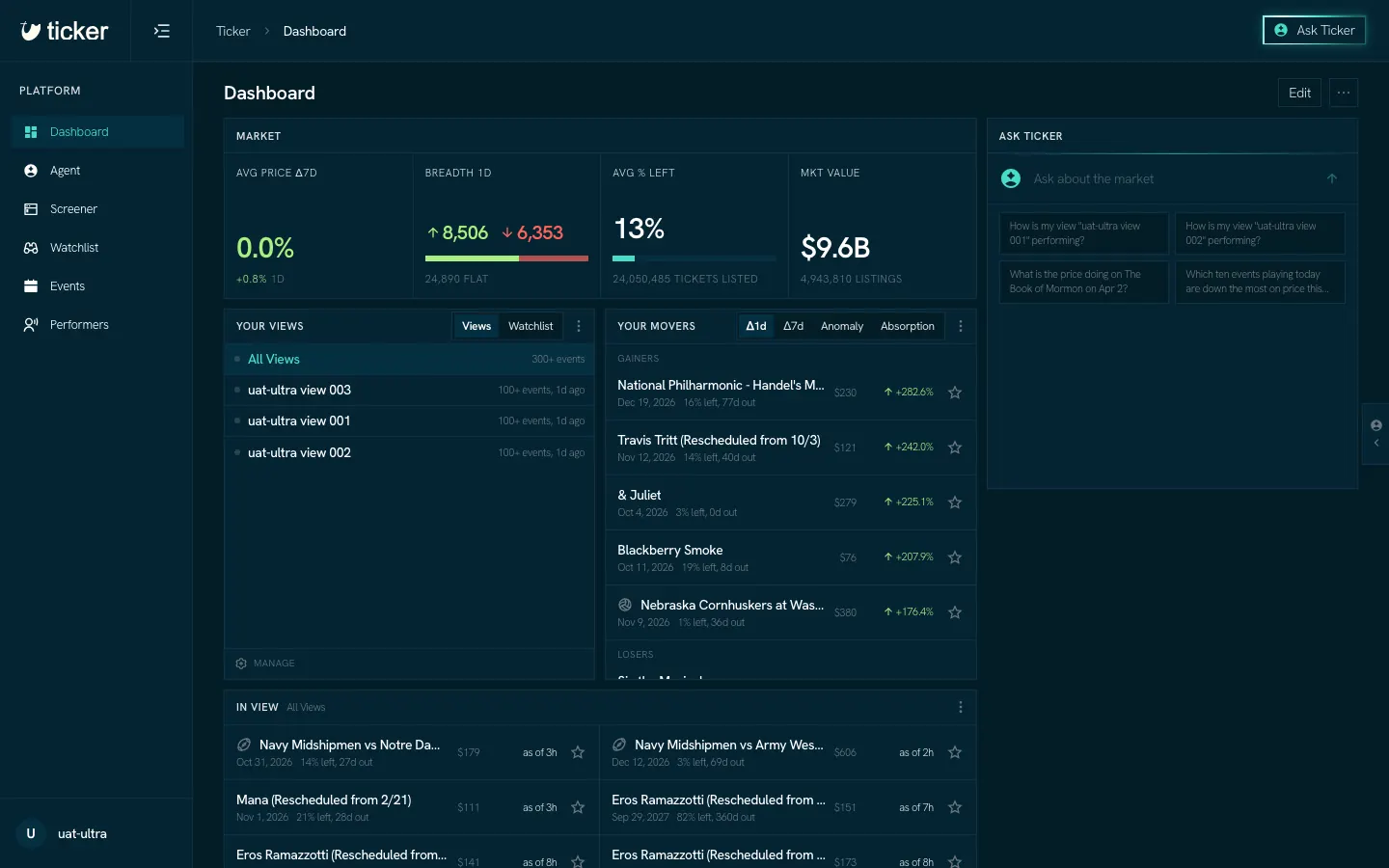
Dashboard
Your home page: a grid of Widgets you arrange.
Agent
Ask Ticker about the market in plain language.
Screener
Filter every event by any number we keep, then save the screen as a View.
Watchlist
Your Views and the events you watch, and the Alerts they send.
Your first Digest
Tap the events you care about and get your View's whole table at the hour you pick.
Events
Every event we track, and the event page with its chart and Seat map.
Performers
Performers ranked by popularity, each with a page of its own.
Settings
Your account, Alert destinations, membership and the AI connection.
Ask Ticker on any page
The button at the top right of every page opens the Agent in a column beside the page. It names what it reads: "Ask about this screen" on the Screener, "Ask about this event" on an event page. The page you are on goes with your question. See Agent.
Words the app uses
- View: a saved screen. Ticker checks it on a schedule and records each event that enters it.
- Match: one event entering a View.
- Alert: the message that tells you about new Matches, by email or at an Alert destination.
- Alert destination: a Discord channel, a Slack channel or a URL that receives Alerts.
- Digest: a View's whole table sent at the hour you pick, with what changed since the last one.
- Issue: one Digest as it was sent, with its Movers, New and Gone.
- Section: a seating area as the venue sells it ("Section 411").
- Gone: the share of a section's seats that are taken, no longer open for sale on the primary market. Taken is not sold: a seat can be held back or not yet released.