Screener
Filter every event we track by price, inventory and demand, then save the screen as a View.
The Screener is a table of every upcoming event we track, one row per event. You narrow it with filters and sort it by any column.
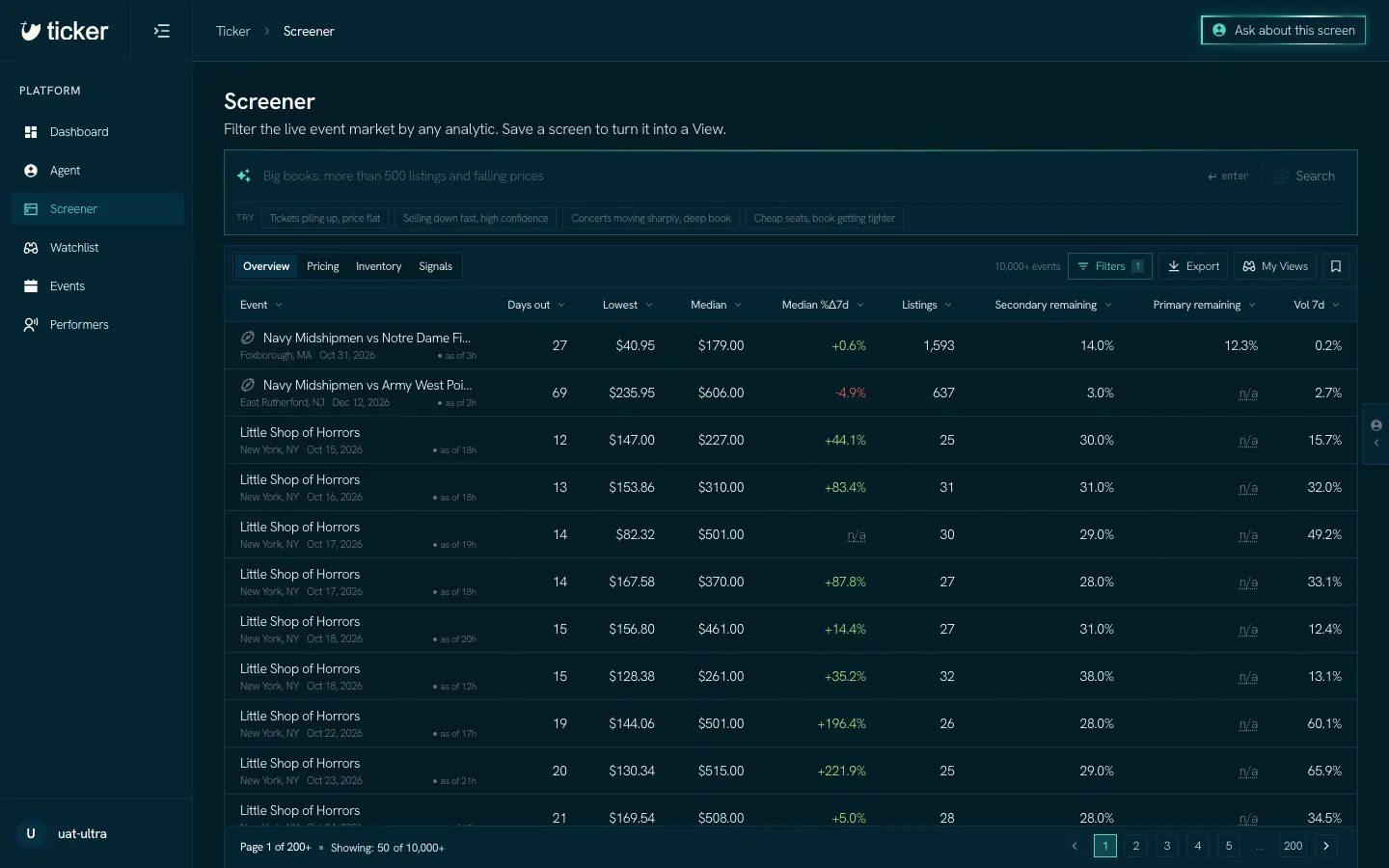
Describe the screen in words
Type what you want in the box at the top, for example "concerts in the next two weeks with prices going up", and press Enter. Ticker turns it into filters you can see and change. The suggestions under the box are examples to start from.
Filter and sort
- Filters opens the filter list. The number on the button counts the filters in use.
- The tabs above the table (Overview, Pricing, Inventory, Signals) show different sets of columns.
- Click a column heading to sort by it.
- Click an event's name to open its event page.
Save it as a View
Click the bookmark button at the right of the toolbar and give the screen a name. A View is a saved screen that Ticker keeps checking: each event that enters it is a Match, and new Matches can send you an Alert. Your Views live on the Watchlist.
My Views opens a saved View in the Screener again. Export downloads the rows as a CSV file.
The same filters work from your AI assistant: see the predicate DSL.