Connect Claude
Add Ticker as a custom connector on claude.ai.
Who can do this: Claude Pro or Max. On Team and Enterprise an organisation owner adds the connector first, and everyone else then connects to it.
https://api.findticker.com/mcpSteps
- 1
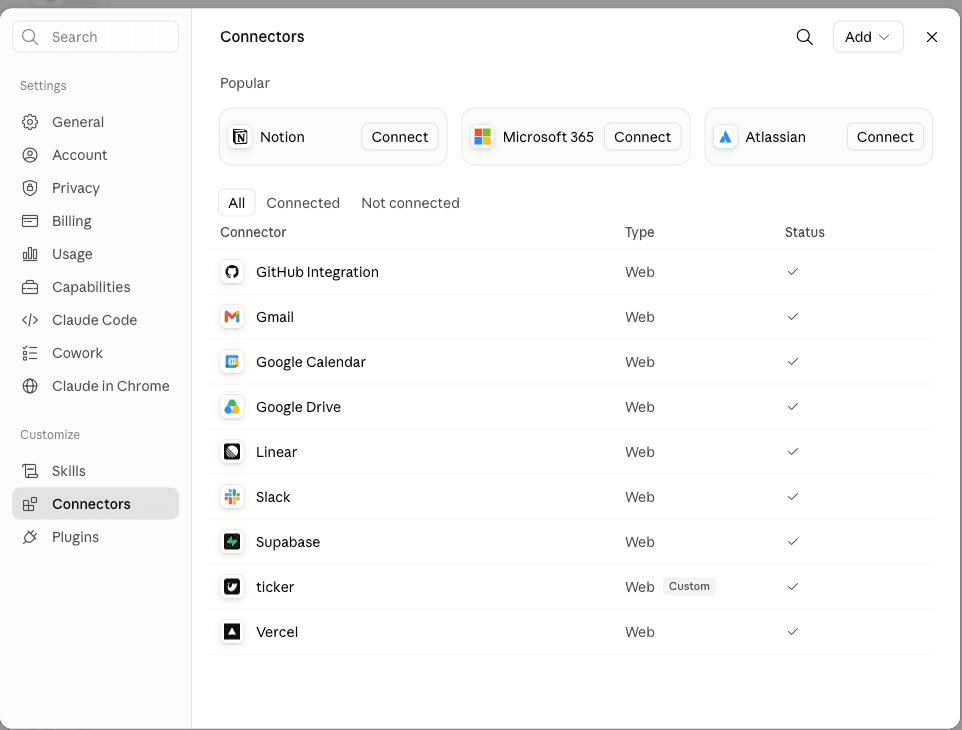
On claude.ai with a Pro or Max plan, open Customize, then Connectors.
Settings, then Connectors is a dead end now — it only says connectors have moved. The live page is claude.ai/customize/connectors, and it serves Claude Desktop too, because connectors live on your account rather than on the machine.
- 2
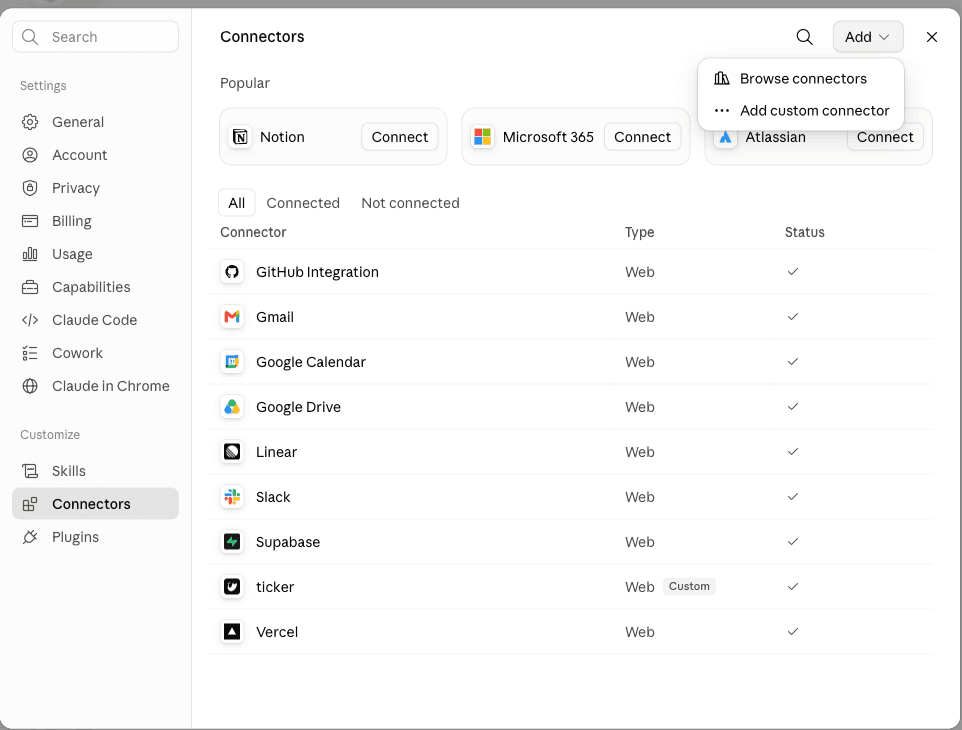
Click Add, then Add custom connector.
Add is the dropdown at the top right of the connectors list.
- 3
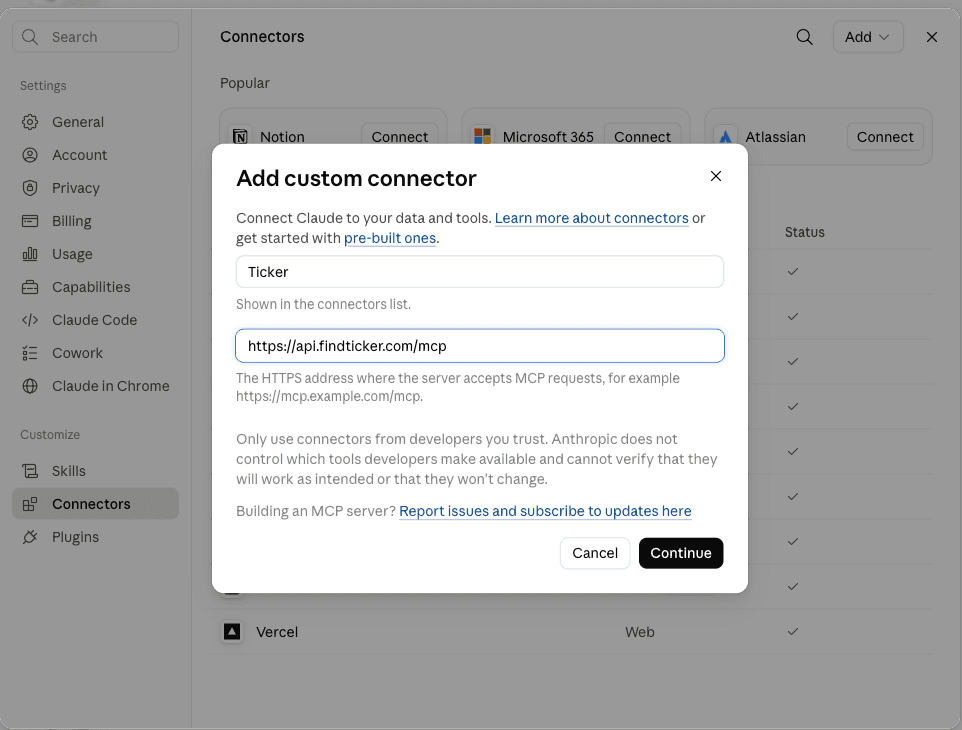
Name it Ticker, paste the Ticker server URL, then click Continue.
This dialog is step 1 of 2. Leave the advanced OAuth client ID and secret fields on the next step empty — those are for servers that cannot register a client on their own, and Ticker can.
- 4
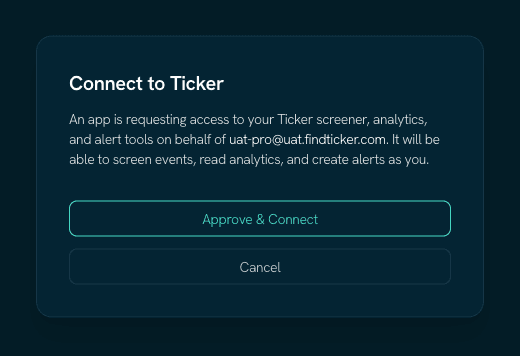
Click Connect on the Ticker connector, then approve access on Ticker's page.
The sign-in opens in a separate window.
- 5
In a chat, enable Ticker under the tools menu.
Connectors are switched on per conversation.
Worth knowing
Claude says the connector already exists
“A connector with this URL already exists in your organization” means Ticker is already added. Close the dialog, find Ticker in the connectors list, and click Connect instead.
Team and Enterprise add it once, centrally
Only an owner can add a connector to a Team or Enterprise plan. Everyone else then finds it under Connectors and clicks Connect.
Claude connects from Anthropic's servers
Not from your computer. This matters only for a server behind a VPN or a company firewall. Ticker is public, so it does not affect you here.
Where these steps come from
Walked on a live account on 2026-08-29. Claude changes these menus without notice — if a name here does not match what you see, the platform docs below are the newer truth, and tell us so we can fix this page.